Translate Text Faster With Aissista's Browser Extension
You're reading a document in Japanese, but you need the information in English. What do you usually do?
You select the text, copy it, open a translation website, paste it, choose English, and wait for the result. Then you copy the translation and return to your original document.
It's a simple process, but when you have to do it several times a day, it becomes frustrating.
What if you could translate that same text without leaving the page?
That's where Aissista's Multilingual Translation feature comes in. With the Aissista browser extension, you can select text, click the Fav icon, and translate it using a built-in prompt. You can also create your own translation prompts for specific language pairs, such as Japanese to English or English to French.
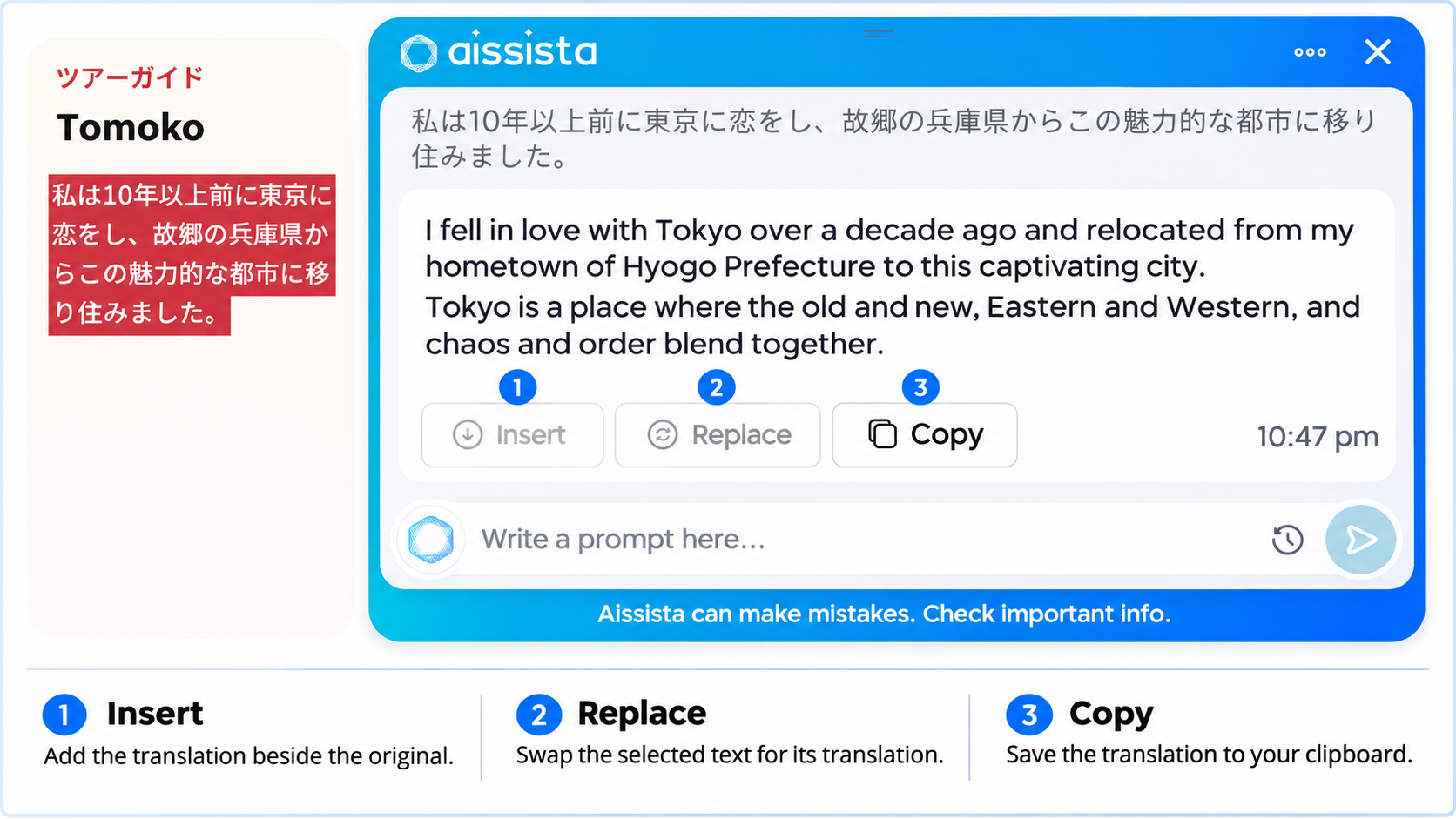
Once the translation is ready, you can replace the original text, insert the translated version, or copy it.
No separate translation website. No repeated copy-pasting. Just a simpler way to work with different languages.
Key Takeaways
Select a passage and click Aissista’s floating icon to translate it on the same page.
Use the default prompt to translate selected text into English. It works for anything from a client’s email to a paragraph in a research paper.
For a language pair you use often, such as English to French, save and sync a custom prompt in your dashboard. Refresh the page to use it from the extension.
Choose Replace to swap the original text for the translation, Insert to keep both versions together, or Copy to use the translation elsewhere.
Before publishing translated content, review product names, examples, and phrasing to make sure they fit your audience.
Translate Text Directly From the Page You're Working On
When you're working with different languages, the translation itself isn't always the biggest problem. It's the process of getting the text translated.
You might be reading an international client's email, reviewing a document, or working with content written in a language you don't understand. Opening another website every time you need a translation takes you away from what you're doing.
Aissista brings translation into your existing browser workflow.
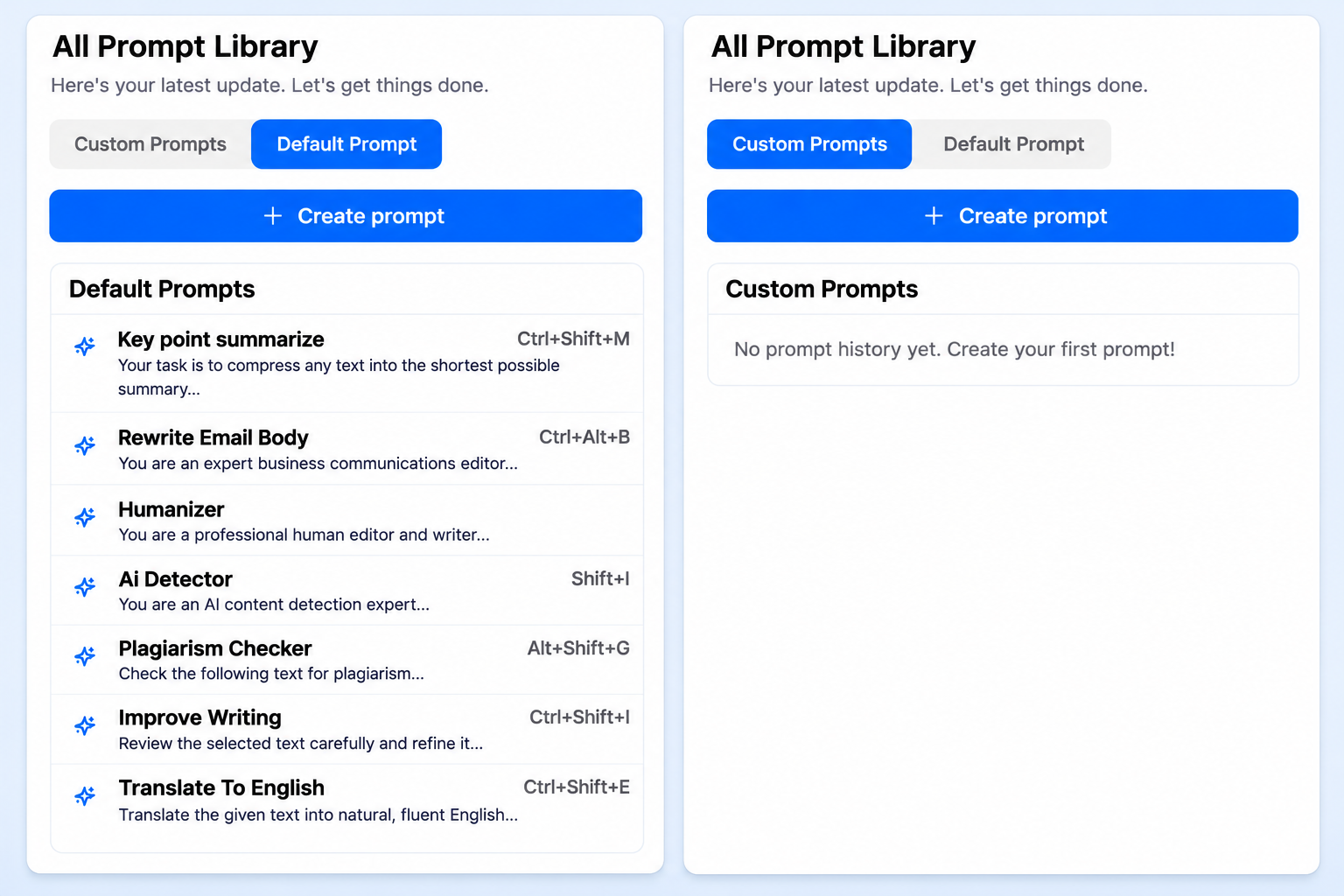
After installing the extension, select the text you want to translate. The Aissista floating icon appears near your selection. Click it to see the available prompts, including the default translation option and any custom prompts you've created.
Choose the one you need, and Aissista generates the translated text.
You don't have to type the original content into another tool or start a new translation request from scratch.
How Aissista's Default Translation Prompt Works
Sometimes, you don't need to configure anything. You just want to understand a piece of text in English.
Aissista makes this easier with its default translation prompt.
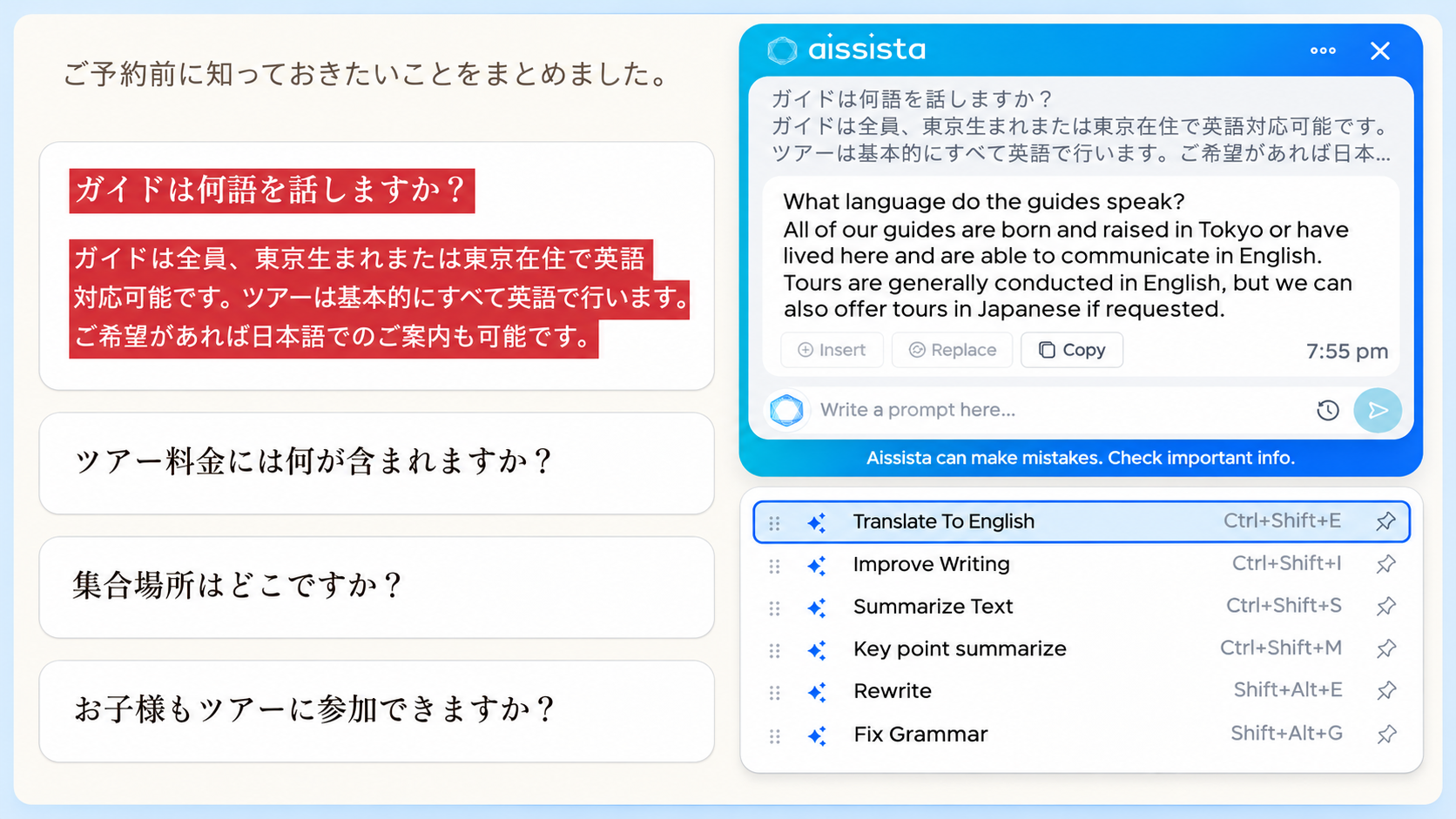
When you select text and click the Aissista floating icon, you'll see the default translation option. This prompt translates the selected content into English.
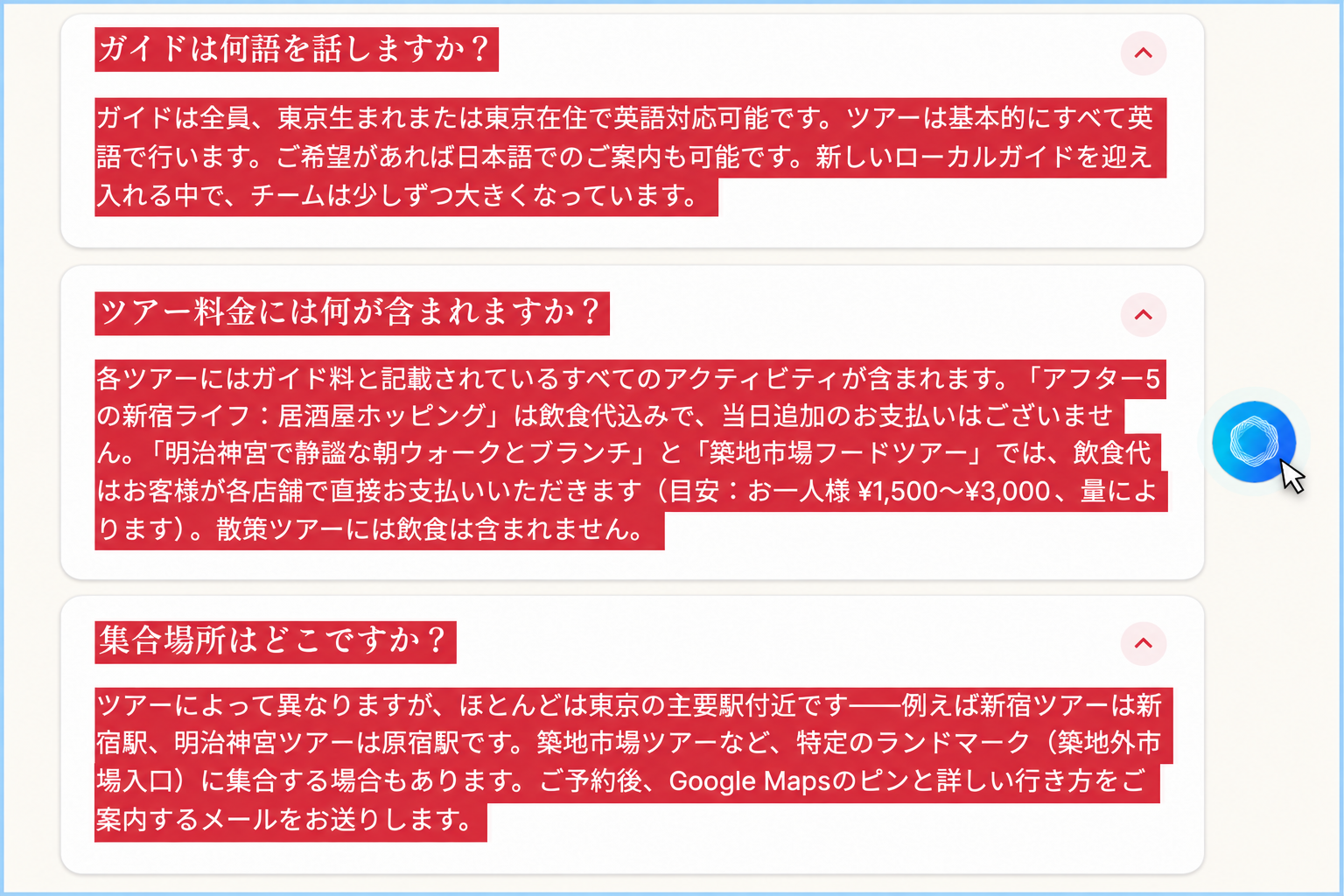
For example, imagine you're reading a document written in Japanese. You don't understand the language, but you need to know what a particular paragraph says.
Here's what you do:
Select the Japanese text.
Click the Aissista floating icon.
Choose the default translation prompt.
Aissista translates the selected text into English.
That's it. You don't need to write an instruction or manually select English every time when using the default prompt.
This is particularly useful when you regularly read messages, documents, or web content in different languages and want to understand them in English.
Need a Different Language Pair? Create Your Own Translation Prompt
Translating everything into English isn't always what you need.
Suppose you're writing content in English and want a Japanese version. Or perhaps you're working with a French document and need its German translation.
The default prompt is designed for translation into English. For other language combinations, Aissista gives you another option: Custom Prompts.
You can create your own translation instructions from the Custom Prompt feature in your Aissista dashboard.
Here's how it works.
Step 1: Open Custom Prompt in Your Aissista Dashboard
Log in to your Aissista dashboard and find the Custom Prompt feature.
This is where you can create instructions for specific writing tasks, including translations between different languages.
Step 2: Set Your Source and Target Languages
Decide which language you want to translate from and which language you want the result in.
For example:
Source language: Japanese
Target language: English
Or:
Source language: English
Target language: Japanese
You can set the language combination according to your needs.
Step 3: Add Your Translation Instruction
Now write a clear instruction explaining what you want Aissista to do.
For example:
"Translate the selected text from Japanese into English. Keep the original meaning and make the translation clear and natural."
You can create similar instructions for other language combinations.
The important thing is to specify both the source and target languages so the prompt knows exactly what kind of translation you need.
Step 4: Save and Sync Your Custom Prompt
Once you've finished creating your prompt, give it a recognizable name.
For example, you could name it Japanese to English.
Save the prompt and sync your changes. After syncing, refresh the page so the updated prompt becomes available in your extension.
Step 5: Use Your Custom Prompt From the Extension
Now return to the page where you want to translate text.
Select the content and click the Aissista floating icon again.
You'll see the default translation prompt along with your newly created custom prompt, such as Japanese to English.
Choose the custom prompt, and Aissista will translate the selected text according to your saved instructions.
You can create and save multiple prompts for different language combinations. Once they're synced, you can reuse them whenever needed.
What Happens After Aissista Translates Your Text?
Getting the translation is only part of the process. You also need to decide what to do with the result.
Aissista gives you three options, depending on how you want to use the translated content.
Replace the Original Text
If you no longer need the original language in your selected text, choose Replace.
Aissista replaces the selected content with the translated version. You can continue working with the translated text without manually removing the original content.
Insert the Translation
Sometimes, you want to keep both language versions.
For example, you're reviewing a Japanese document and want the English translation alongside the original text.
Choose Insert to add the translated content after the selected text. This makes it easier to compare both versions.
Copy the Translated Text
If you need the translation somewhere else, choose Copy.
You can then use the translated content in an email, document, message, or another application.
These options give you control over how the translation fits into your work.
Everyday Situations Where Aissista Translation Makes a Difference
You don't have to be a professional translator to need a multilingual translation tool. It can be useful in many everyday situations.
Reading Emails From International Clients
Imagine receiving an email from a client in France. You need to understand the message before replying.
Select the relevant text, choose the default translation prompt, and get the English version.
If you need to translate your English response into French, you can use a custom prompt created for English-to-French translation.
This makes communication easier without repeatedly switching between tools.
Working With Documents in Different Languages
Students, researchers, and professionals often work with documents written in unfamiliar languages.
You might find a useful research paper in Japanese or receive a document in German that you need to review.
Instead of moving between your document and a translation website, select the section you need and use Aissista.
You can translate individual paragraphs and insert the translated content when you want to keep both versions together.
Preparing Content for Different Audiences
Content writers and digital marketers often need to prepare material for audiences who speak different languages.
For example, you might write a landing page in English and need a Japanese version.
Create an English-to-Japanese custom prompt, select your content, and use that prompt to generate the translation.
You can then review the result and adjust product names, examples, and expressions to fit the intended audience.
Understanding Messages From International Teams
Working with an international team often means receiving instructions, updates, and messages in different languages.
Aissista helps you translate selected text directly from your browser, so you can understand the message and get back to your work.
Whether you need a quick English translation or a specific language combination, you can choose the appropriate prompt.
Why Use Aissista for Everyday Translation?
The biggest advantage of Aissista isn't simply that it translates text. It's how easily translation fits into your existing workflow.
Here are a few practical benefits.
No Need to Copy and Paste Text Into Another Website
You can start a translation directly from your selected text.
There's no need to copy the content, open a separate translation website, paste it, and bring the result back.
Use Default and Custom Translation Prompts
You have more than one way to translate.
Use the default prompt when you want to translate selected text into English. When you need a different language combination, create a custom prompt with your own source language, target language, and translation instruction.
You can save and reuse these prompts instead of writing the same instructions repeatedly.
Work With Different Language Combinations
You aren't limited to translating everything into English.
You can create custom prompts for language combinations that match your work, such as:
Japanese to English
English to Japanese
French to English
English to French
German to English
Spanish to English
You can create additional prompts for other language combinations according to your needs and the languages supported by Aissista.
Choose What Happens to Your Translation
Not every translated text needs to be used in the same way.
Sometimes you want to replace the original content. Sometimes you want both versions together. And sometimes you just need to copy the result.
Aissista lets you choose between Replace, Insert, and Copy, depending on your task.
Keep Your Work Moving
Every time you leave your current page to translate something, you interrupt what you're doing.
Aissista reduces those extra steps by bringing the translation feature into your browser workflow. You can translate, review, and use the result without repeatedly switching between different websites.
Who Can Benefit From Aissista's Multilingual Translation Feature?
Aissista can be useful for anyone who regularly reads, writes, or works with content in different languages.
Students: Understand foreign-language study materials, documents, and reading resources more easily.
Researchers: Translate selected passages from international research materials before reviewing the original source for accuracy.
Freelancers: Understand international client emails, project instructions, and feedback without repeatedly opening separate translation tools.
Content Writers and Bloggers: Work with foreign-language references and prepare initial translations for different audiences.
Digital Marketers: Translate campaign messages, website copy, and marketing content into other supported languages.
Business Professionals: Handle international communication and understand documents or messages written in different languages.
Make Multilingual Translation Part of Your Everyday Work
Sometimes, all you need is a quick translation to understand a message or continue working on a document.
You shouldn't have to interrupt your work every time that happens.
Aissista, you can select text, click the floating extension icon, and choose how you want to translate it. Use the default prompt for English translations or create custom prompts for other language combinations through your dashboard.
Once the result is ready, replace the original text, insert the translation, or copy it wherever you need.
It's a more convenient way to work across languages without adding unnecessary steps to your day.
Ready to make translation easier?
Frequently Asked Questions
1. How can I translate text without copying and pasting?
Install the Aissista browser extension, select the text you want to translate, and click the floating Aissista icon. Choose a translation prompt and use the generated result directly.
2. What does Aissista's default translation prompt do?
The default translation prompt translates your selected text into English. You can use it when you want to understand content written in another language without creating a separate instruction.
3. How can I translate English into Japanese using Aissista?
Create a custom prompt from the Custom Prompt feature in your Aissista dashboard. Set English as the source language and Japanese as the target language, add your translation instruction, save the prompt, and sync it. After refreshing the page, you can access it from the extension menu.
4. Can I create custom translation prompts for different languages?
Yes. You can create custom prompts for different language combinations by specifying the source language, target language, and translation instruction. Save and sync your prompts to access them through the extension.
5. Where can I find my saved custom translation prompts?
After creating, saving, and syncing a custom prompt in your Aissista dashboard, refresh the page. Your saved prompt will appear in the extension's prompt menu when you select text and click the floating icon.
6. Can I translate Japanese text into English using Aissista?
Yes. You can use the default translation prompt to translate selected text into English. You can also create a custom Japanese-to-English prompt if you want a reusable instruction for that language combination.
7. Can I replace the original text with its translation?
Yes. After generating the translation, choose Replace to substitute the selected original text with the translated version. You can also use Insert or Copy.
8. Can I keep the original text and the translated version together?
Yes. Choose Insert to add the translated text alongside the original content. This is useful when you want to compare both language versions.
9. Do I need to write a translation instruction every time?
No. You can use the default translation prompt or create custom prompts and save them for repeated use. This saves you from writing the same translation instructions every time.
10. Who can benefit from Aissista's translation feature?
Students, researchers, freelancers, content writers, digital marketers, and business professionals can all benefit from it when they regularly work with content written in different languages.